
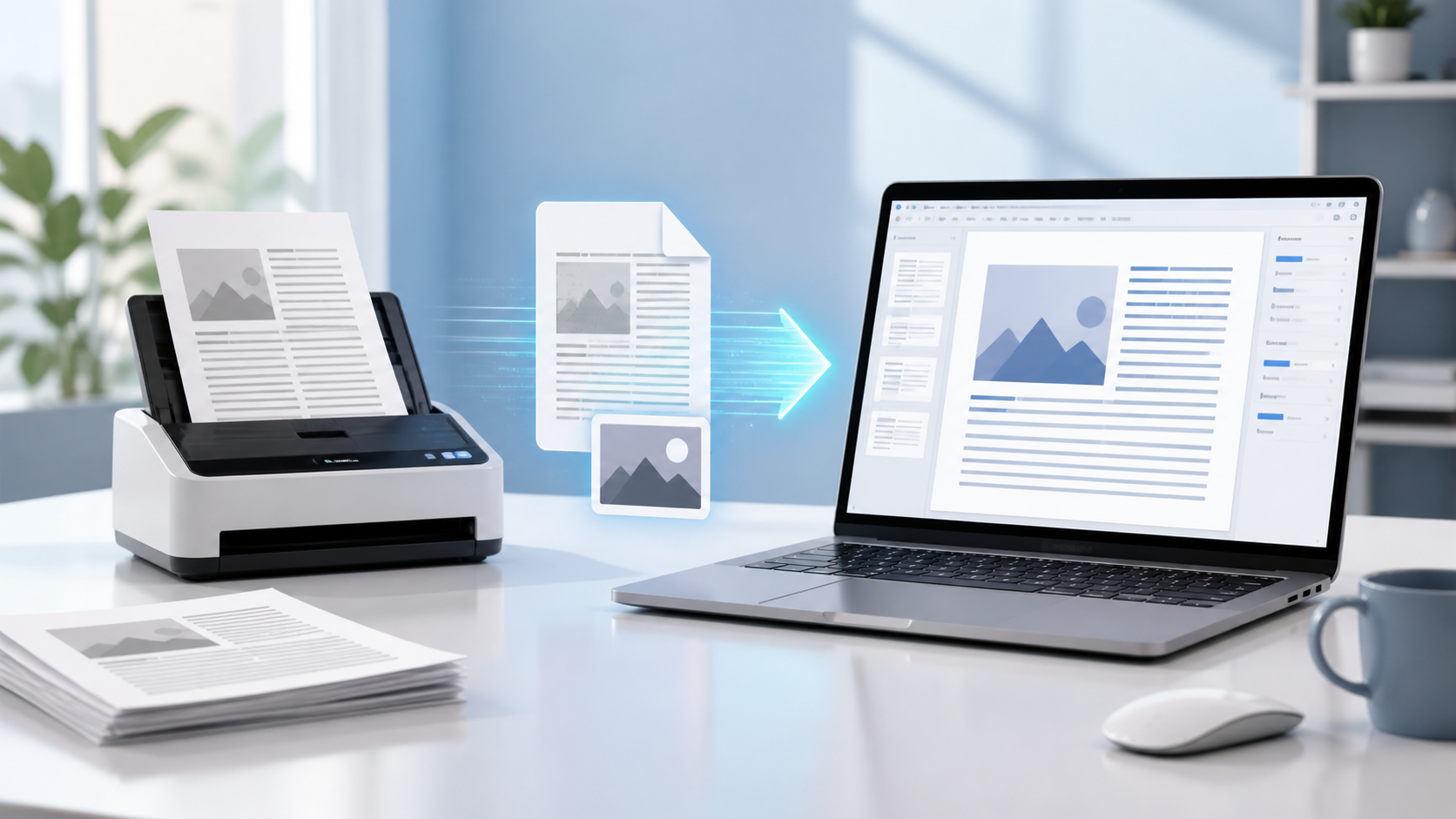
A scanned PDF may look like a normal document, but its pages are often just pictures. If you cannot select, copy, or search the words in the file, a standard PDF converter may not be enough. You need optical character recognition (OCR) to turn the image of the text into editable text.
This guide shows how to convert a scanned PDF to an editable Microsoft Word document on Windows 11 or Windows 10 with Free OCR to Word. The OCR process runs on your Windows PC, so you do not have to upload private documents to an online conversion service.
Is Your PDF Scanned or Text-Based?
Before converting the file, check what type of PDF you have:
- Text-based PDF: You can select individual words, search the document, and usually copy text directly.
- Scanned PDF: Each page is an image. The words may look clear, but they cannot be selected or edited until OCR recognizes them.
A quick test is to open the PDF and drag the mouse across a sentence. If the whole page behaves like one picture instead of highlighting individual characters, it is probably a scanned or image-only PDF. Zooming in may also make the letters look pixelated.
Why Use Offline OCR on Windows 11?
Online OCR tools can be convenient, but they require you to upload the document to a remote server. A desktop OCR workflow is often a better choice for invoices, contracts, reports, client documents, and other files that may contain sensitive information.
Free OCR to Word supports Windows 11 and Windows 10 and can recognize text in scanned PDFs and common image formats, including JPG, JPEG, PNG, BMP, GIF, TIF, and TIFF. You can also import a page directly from a connected scanner.
How to Convert a Scanned PDF to Word on Windows 11 or 10
1. Download and install Free OCR to Word
Download the installer from the official Free OCR to Word website, complete the installation, and launch the program. Downloading from the official site helps you avoid altered copies from third-party download pages.
2. Open the scanned PDF or image
Click Open and select the scanned PDF you want to convert. You can use the same workflow for a photo or scan saved as JPG, PNG, BMP, TIFF, or another supported image format.
If you are starting with a paper document, click Scan to open your scanner software and bring the scanned page into Free OCR to Word.
3. Choose the text area
Select the part of the page that contains the text you want to recognize. Excluding decorative borders, photos, and unrelated page elements can help the OCR engine focus on the useful content.
Use the zoom controls to inspect small text. If the page is sideways or slightly tilted, rotate it into the correct upright position before running OCR.
4. Run OCR
Click OCR. Free OCR to Word analyzes the selected area and places the recognized text in the text panel. Processing time depends on the page size, image quality, and the amount of text.
5. Proofread the recognized text
Review the result before exporting it. Every OCR program can make mistakes, especially when the source contains blurred letters, unusual fonts, handwriting, multiple columns, tables, shadows, or low contrast.
Pay special attention to characters that look similar, such as 0 and O, 1 and l, or 5 and S. Names, account numbers, dates, and totals deserve an extra check.
6. Export the text to Microsoft Word
Click Export Text into Microsoft Word. The software opens Microsoft Word and creates a new document containing the recognized text. Make any final edits, apply your preferred formatting, and save the file as DOC or DOCX.
How to Improve OCR Accuracy
The source image has the biggest effect on recognition quality. These practical adjustments can reduce errors:
- Use a clear scan. A resolution around 300 DPI is usually a good starting point for printed text.
- Keep pages straight. Rotate sideways scans and correct obvious skew before recognition.
- Increase contrast. Dark text on a clean, light background is easier to recognize.
- Remove distractions. Crop out dark borders, fingers, shadows, and unrelated images.
- Work in smaller areas. On complex pages, recognize one text block at a time.
- Proofread important data. Never rely on OCR alone for legal, medical, financial, or other critical information.
Scanned PDF to Word vs. Image to Word
The underlying process is the same. A scanned PDF contains one or more image-based pages, while an image-to-Word task starts with a file such as JPG or PNG. In both cases, OCR detects the shapes of printed characters and converts them into editable text.
For a detailed image workflow, see how to extract text from images with OCR. You can also browse the Free OCR to Word tutorials for additional examples.
Offline OCR vs. Online OCR
Both approaches have advantages. Online OCR requires no installation and may be useful for a quick, non-sensitive file. Desktop OCR avoids upload time and keeps the conversion workflow on your own Windows computer. It is especially useful when you have a slower connection, large scans, repeated conversion work, or documents you prefer not to upload.
Whichever method you choose, keep the original scan until you have checked the exported Word document. OCR creates editable text; it does not replace the source document as an authoritative record.
Frequently Asked Questions
Does Free OCR to Word work on Windows 11?
Yes. Free OCR to Word supports Windows 11 and Windows 10.
Can I convert a scanned PDF to Word for free?
Yes. Free OCR to Word is free to download and use for recognizing text in scanned PDFs and images and exporting the result to Microsoft Word.
Can I convert JPG or PNG images to Word?
Yes. Open the image, select the text region, run OCR, proofread the result, and export the recognized text to Microsoft Word.
Will OCR preserve the exact original layout?
OCR accuracy and layout results depend on the source. Simple printed pages generally require less correction than documents with columns, tables, handwriting, decorative fonts, or complex graphics. Review both the text and formatting after export.
Why can I not select text in my PDF?
The PDF is probably image-only. It may have been created by a scanner or from photographs of pages. OCR is required to add editable, searchable text.
Convert Your Scanned Document Now
With the right source image, converting a scanned PDF to Word only takes a few steps: open the page, select the text, run OCR, proofread the result, and export it. This gives Windows 11 and Windows 10 users a straightforward way to reuse printed or scanned text without manually retyping the entire document.